Gemini Omni Flash Guide

How to use Gemini Omni Flash and write prompts that actually work

Gemini Omni Flash launched in May 2026 as Google's first model to co-generate synchronized video and audio in a single pass. This guide covers everything: what Gemini Omni Flash is, how its prompt format differs from other models, and how to get the best results — fast.

Gemini Omni Flash launched May 2026 · Available in Gemini app, Google Flow, and YouTube Shorts

Open the full AI video prompt generator →
AD

What makes Gemini Omni Flash different from other AI video models

Understanding what Gemini Omni Flash actually does under the hood is the key to writing prompts that work.

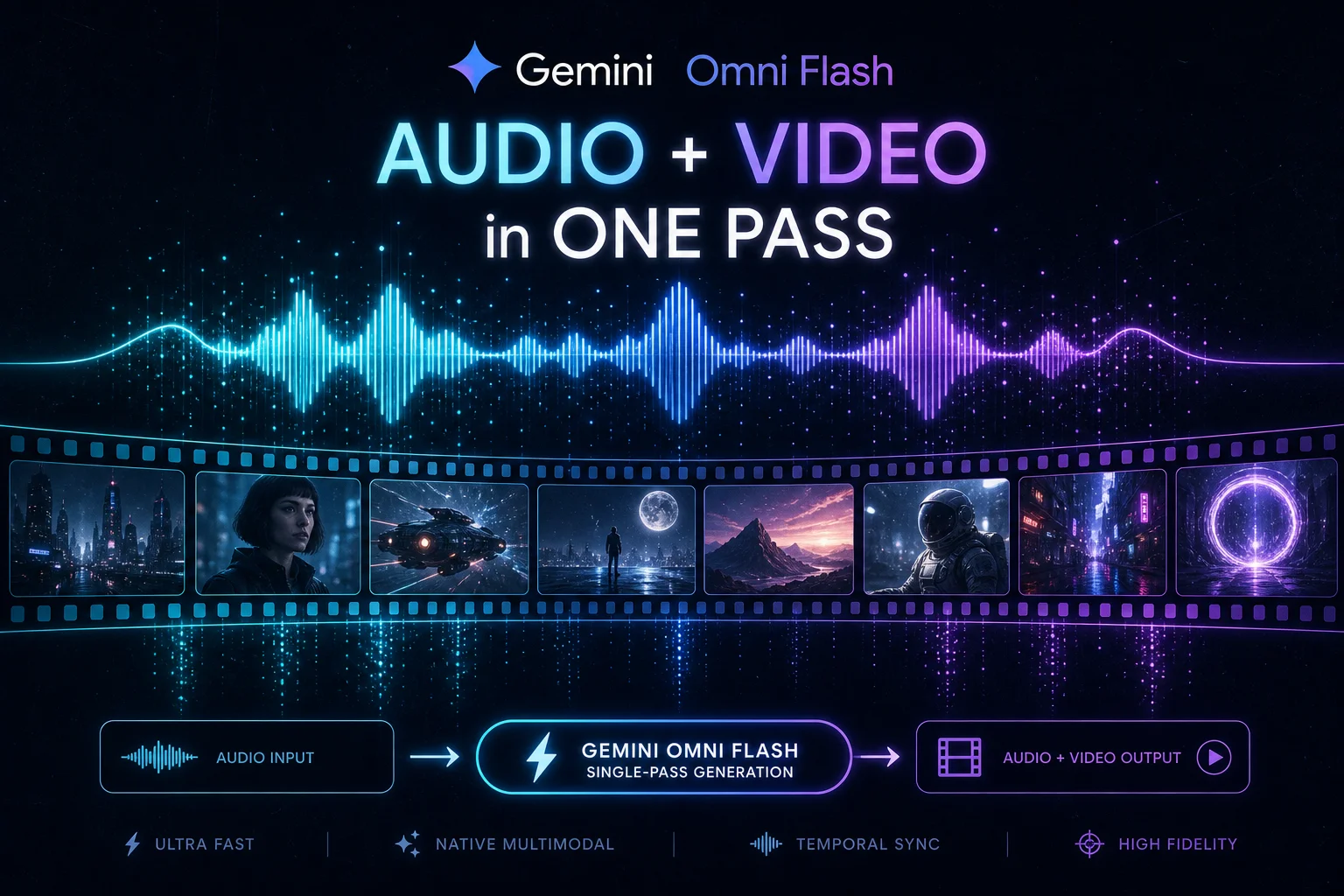
Gemini Omni Flash generates video and audio in one pass

Most AI video models produce silent video — you add audio separately in post. Gemini Omni Flash is different: it co-generates synchronized voice, sound effects, and music alongside the video in a single inference pass. Frame-accurate lip-sync means the character's mouth movements match the dialogue without any manual editing. To trigger this, your Gemini Omni Flash prompt must include audio instructions — specifically, dialogue in quotation marks and a sound environment description.

Gemini Omni Flash single-pass audio-video generation diagram

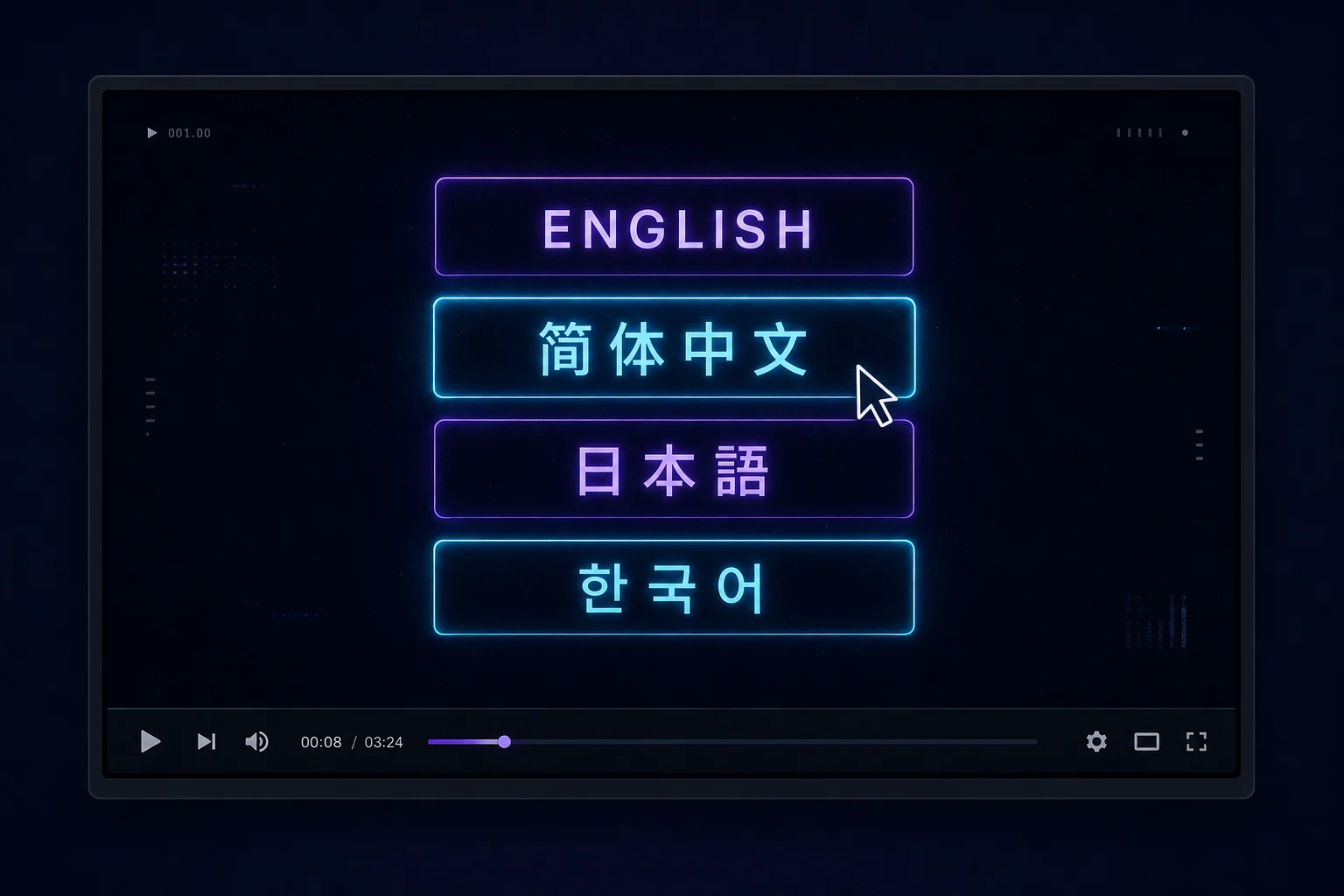
Gemini Omni Flash renders multilingual text inside video

One of Gemini Omni Flash's standout capabilities is clean in-video text rendering in English, Chinese, Japanese, and Korean — all without glitching, shifting, or garbling. Most other models struggle with embedded text. To use this in your Gemini Omni Flash prompt, explicitly state the text you want on screen and the language. For example: 'Display the text "春节快乐" (Simplified Chinese) in the center frame for 3 seconds.' This is especially powerful for multilingual product ads and social media content.

Gemini Omni Flash rendering clean multilingual on-screen text in Chinese and English

How to write a Gemini Omni Flash prompt step by step

Every Gemini Omni Flash prompt that works well follows the same five-part structure.

01

Start with Subject and Action

The first sentence of your Gemini Omni Flash prompt defines who or what is in the frame and what they are doing. Be specific about appearance — not just 'a woman' but 'a woman in her 30s wearing a white linen shirt.' Use a concrete action verb: 'walks through,' 'holds up,' 'turns to face.' Vague subjects produce vague Gemini Omni Flash outputs.

  • Include age, clothing, hair color if relevant
  • Use a specific verb, not 'is' or 'stands'
Generate a subject prompt
02

Add Camera, Environment, and Style

The second sentence in your Gemini Omni Flash prompt sets the visual parameters. Camera shot (close-up, wide, medium), movement (static, push-in, tracking), environment (studio, outdoor café, neon-lit street), and visual style (cinematic 35mm, flat product, vlog) all belong here. Gemini Omni Flash has good physics understanding — if you write 'a light breeze moves the curtains,' it will render that accurately.

  • Gemini Omni Flash supports up to 10-second clips
  • Conversational editing is available — you can refine after generation
03

Add the audio instruction (the key differentiator for Gemini Omni Flash)

This is the step most people skip — and it is the most important one for Gemini Omni Flash. Add a third sentence with: dialogue in quotation marks (for lip-sync), a sound environment description (ambient sounds), and optionally a music mood. Example: 'She says: "This moisturizer changed my skin." Background audio: soft café ambience, light jazz.' Without this, Gemini Omni Flash may produce silent or poorly synced output.

  • Dialogue in quotation marks triggers lip-sync mode
  • Keep dialogue under 20 words for best sync accuracy

For product ads: write dialogue as a first-person testimonial. Gemini Omni Flash renders testimonial-style lip-sync especially well.

Generate a full Gemini Omni Flash prompt
04

Iterate with conversational editing

Gemini Omni Flash supports chat-based editing — you can modify specific elements without regenerating the entire clip. Type 'change the background to a rooftop at sunset' or 'make the character's shirt blue' and Gemini Omni Flash preserves the unmodified parts. This is different from re-prompting: it's targeted, incremental editing that keeps the character and scene consistent across revisions.

  • Target one element per edit
  • Keep the original Gemini Omni Flash prompt handy for reference

Gemini Omni Flash capabilities at a glance

These are the Gemini Omni Flash features your prompts can unlock. Reference this when writing your next Gemini Omni Flash prompt.

Up to 10-second Gemini Omni Flash clips

Gemini Omni Flash currently generates clips up to 10 seconds. For longer content, stitch multiple Gemini Omni Flash outputs. Google has announced plans to extend this limit.

Generate a 10s prompt

Synchronized audio in one pass

Gemini Omni Flash co-generates voice, SFX, and music alongside video. No separate audio production step needed when you include audio instructions in your prompt.

Try an audio prompt

Multilingual text rendering

Gemini Omni Flash renders in-video text in English, Chinese (Simplified and Traditional), Japanese, and Korean. Specify the language and text content in your prompt.

Try a multilingual prompt

Conversational editing

Modify specific elements of your Gemini Omni Flash clip through natural language chat. Changes preserve unmodified portions of the scene.

Learn about editing

SynthID watermark on every clip

All Gemini Omni Flash outputs include Google's SynthID digital watermark to verify AI-generated content. This is automatic and does not affect visual quality.

Read about SynthID

World-knowledge integration

Gemini Omni Flash draws on Gemini's knowledge of history, science, and cultural context. Prompts referencing real-world context (e.g., 'a traditional Japanese tea ceremony') produce more accurate results than generic descriptions.

See examples

What to make with Gemini Omni Flash

These are the scenarios where Gemini Omni Flash outperforms other AI video models — choose the right Gemini Omni Flash prompt template for each.

Product ads with testimonial voice

Gemini Omni Flash's lip-sync accuracy makes it ideal for first-person product testimonial ads. Write the dialogue line, describe the product, and let Gemini Omni Flash handle audio-video sync.

Best Gemini Omni Flash use case
Generate an ad prompt

Multilingual social media content

Generate Chinese, Japanese, or Korean in-video text overlays with Gemini Omni Flash — something Seedance 2.0 and Runway Gen-4.5 struggle with. One Gemini Omni Flash prompt can produce a fully localized clip.

Multilingual text edge
Try a multilingual prompt

Talking-head explainer videos

Talking-head clips with synchronized narration are a Gemini Omni Flash sweet spot. Use the audio instruction template: describe the speaker, write the script in quotes, specify the background.

Talking-head specialist
Generate a talking-head prompt

Rapid creative iteration

Gemini Omni Flash's conversational editing means you can iterate on a clip without regenerating from scratch. Generate a base Gemini Omni Flash clip, then refine element by element.

Fast iteration
Open the generator

Gemini Omni Flash FAQ

Common questions about Gemini Omni Flash prompts, capabilities, and access.

What is Gemini Omni Flash?

Gemini Omni Flash is Google's multimodal AI model launched in May 2026. It accepts text, images, audio, and video as inputs and generates video with synchronized audio output — including dialogue with lip-sync, sound effects, and music — in a single inference pass. It is available via the Gemini app, Google Flow, and YouTube Shorts.

How do I access Gemini Omni Flash?

Gemini Omni Flash is available through the Gemini app (gemini.google.com), Google Flow (flow.google), and YouTube Shorts. API access for developers was announced for the weeks following the May 2026 launch. You need a Google account — some features require an AI Pro or AI Ultra subscription.

How long can Gemini Omni Flash videos be?

Gemini Omni Flash currently generates clips up to 10 seconds. Google has stated they are working to extend this. For longer content, you can stitch multiple 10-second Gemini Omni Flash clips together using Google Flow's video editing tools.

Why does my Gemini Omni Flash prompt produce silent video?

Silent output usually means your prompt is missing audio instructions. Gemini Omni Flash only generates synchronized audio when the prompt explicitly includes audio cues — dialogue in quotation marks, sound environment descriptions, or music instructions. Add a third sentence to your prompt with these elements.

How does Gemini Omni Flash differ from Seedance 2.0?

Gemini Omni Flash excels at single-shot clips with lip-sync audio, multilingual text rendering, and conversational editing. Seedance 2.0 (ByteDance) excels at multi-shot sequences across cuts, longer clips (up to 15 seconds), and social media aspect ratios. See our full comparison page for a side-by-side breakdown.

Does Gemini Omni Flash support Chinese text in video?

Yes. Gemini Omni Flash renders Simplified Chinese, Traditional Chinese, Japanese, and Korean in-video text cleanly. To trigger this, explicitly state the text content and language in your prompt: 'Display the text "你好世界" (Simplified Chinese) centered in the frame.'

Is Gemini Omni Flash free to use?

Gemini Omni Flash is available to all Google account holders through the Gemini app with a free usage tier. Some advanced features and higher usage limits require an AI Pro or AI Ultra subscription. Google Flow requires a qualifying Google Workspace or AI Pro/Ultra plan.

Generate your first Gemini Omni Flash prompt now

Use OmniPrompt's free generator to write a structured Gemini Omni Flash prompt with audio cues, camera instructions, and platform-optimized format.

Takes under sixty seconds.

Free, in-browser, no sign-up required.